MS VISIO IS A POWERFUL TOOL THAT WILL ALLOW YOU TO CREATE CUSTOM IMAGES AND DIAGRAMS FOR VARIOUS PROJECTS. USE THIS TOOL WHEN YOU WANT TO CREATE DIAGRAMS THAT CAN HELP EXPLAIN AN IDEA OR THOUGHT.
(Also use the tutorial in https://www.youtube.com/watch?v=b09dKHvu4-4 )
PART A – SCALE DIAGRAMS
- Log into your myApps and open Microsoft Visio.
- Select the “Office Layout” preset template.
- Click “Create”. (Use US measurement)
- It now gives you a basic workspace. The ruler on the top and left of your canvas shows 22 feet across and 17 feet high. This will be useful to note, as we will create a diagram “to scale”.
- Go to the “view” menu at the top of the page and check the box that says “grid”.
- Then hit “zoom” in the same toolbar and select “page width”.
- Ask your instructor for a measuring tape.
- Measure the dimensions (length and width) of each of these items at your workstation and write them down here:
- Computer Desk ________________________________
- Computer Tower Case __________________________
- Computer Monitor ______________________________
- Keyboard _____________________________________
- Chair ________________________________________
- Once you have these measurements, click on the Office Furniture and Office Equipment shapes on the left of your Visio window.
- Drag and drop the appropriate furniture and resize them so they are exactly the correct number of feet/inches as your desk. (Note: 12 inches = 1 foot)
- Show your professor your scale model of your workspace.
Professor Signature: ____________________________ /15
PART B: THE FUTURE OF COMPUTERS DIAGRAM
- In Visio, click the file menu and select “new”.
- We will now pick “Basic Diagram”. Then select “Create”.
- On the left, we are now given more general shapes, but you can access more items in the “more shapes” section. (Take a look at the network sub-menu for computer-related devices)
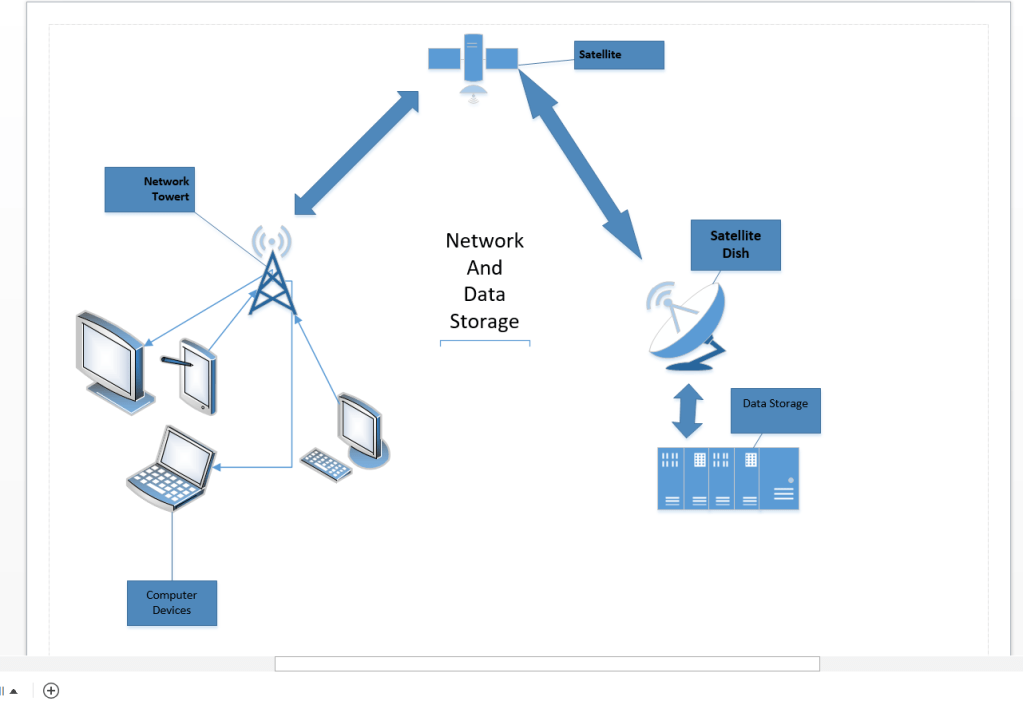
- You will now create a diagram to explain your idea of “The Future of Computers”. Here is an example of “Cloud Computing”. The idea is that all devices can access the cloud, so that is what the diagram shows.
- Use as many different images as possible and avoid using excessive amounts of text. This is intended to explain your concept without words.
- Save your Visio document.
- Now go to File-Export and select “Change file type”
- Save this as a PNG file and copy it to your USB drive or email it to yourself.
(we will use it in a later). - Show the instructor your final diagram that explains your idea.
AFTER SUCCESSFUL COMPLETION OF THIS PRACTICE SET YOUR DOCUMENT SHOULD LOOK LIKE
 LEARNING POINT