These days, knowing how to use Microsoft Excel is so expected that it hardly warrants a line on our resumes. But, let’s be honest here: How well do you really know how to use it?
You may know how to plug in numbers and add up cells in a column, but that’s not going to get you far when it comes to reporting on your metrics.
Gone are the days when marketers could rely on their gut for important business decisions. More than likely, you’ve already been tasked with identifying trends within customer survey results, performing content topic analyses, or pulling in sales data to calculate return on investment. What do all these things have in common? They require a bit more Excel knowledge than what we learned in grade school.
Whether you’d like to create more beautiful charts, finally understand what pivot tables are, or complete your first VLOOKUP (I promise it’s not as scary as it sounds), this guide will teach you everything you need to make more informed marketing decisions, in less time.
Aspiring Excel wizard, read on. Feel free to email, bookmark, or jump to the section that interests you most. And to all the Harry Potter fans out there … you’re welcome in advance.
In fact, if you ever encounter a situation where you need to manually update or calculate your data, you’re probably missing out on a shortcut.
Before spending hours and hours counting cells or copying and pasting data, look for a quick fix in Excel — you’ll likely find one.
In the spirit of working more efficiently and avoiding tedious, manual work, let’s start this Excel deep dive with the basics. Once you have these functions down, you’ll be ready to tackle the advanced Excel lessons head on.
Inserting Rows or Columns
As you play around with your data, you might find you’re constantly needing to add more rows and columns. Sometimes, you may even need to add hundreds of rows. Doing this one-by-one would be super tedious. Luckily, there’s always an easier way.
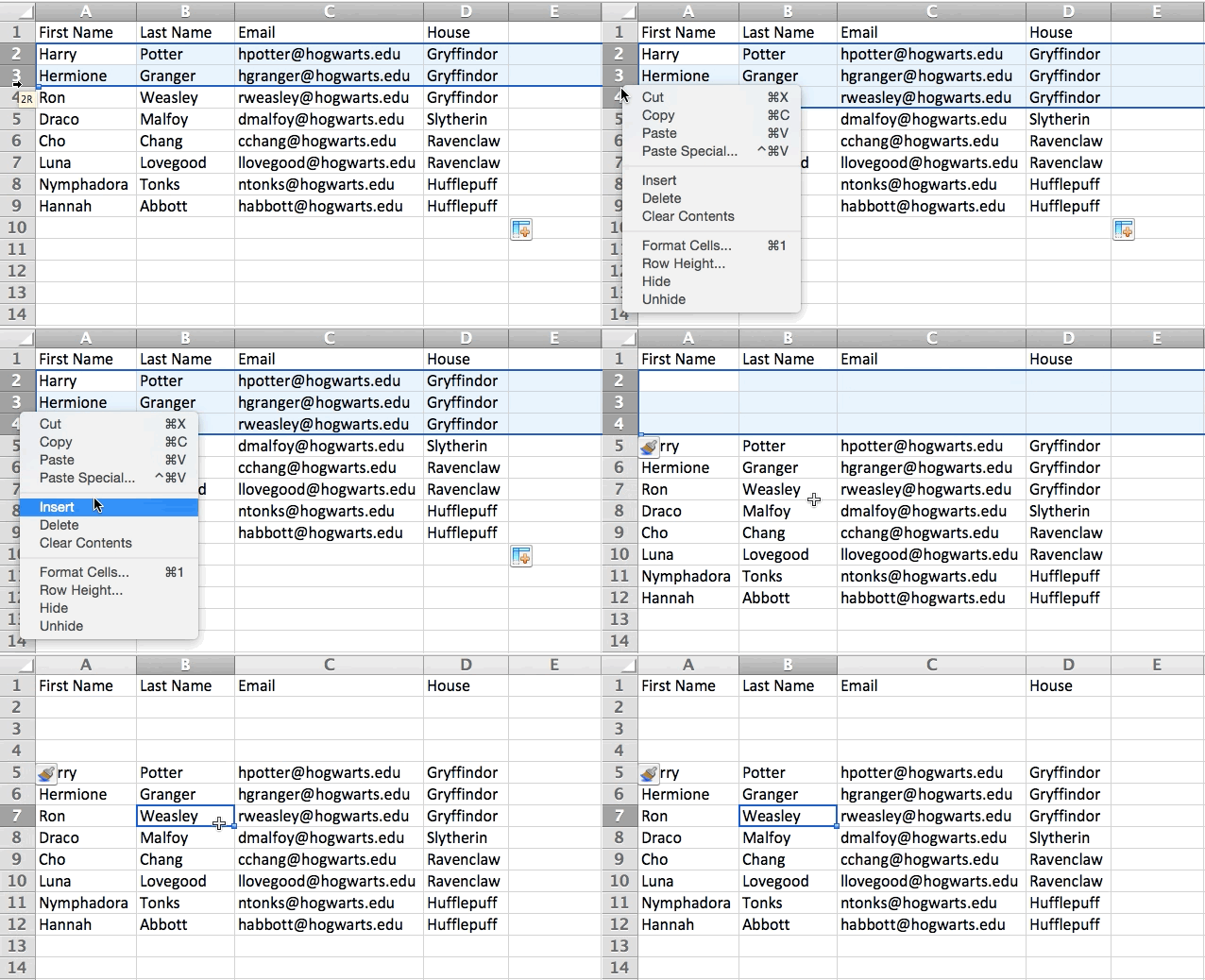
To add multiple rows or columns in a spreadsheet, highlight the same number of pre-existing rows or columns that you want to add. Then, right click and select “Insert.”
In the example below, I want to add an additional three rows. By highlighting three rows and then clicking insert, I’m able to add an additional three blank rows into my spreadsheet quickly and easily.
Autofill
If you have any basic Excel knowledge, it’s likely you already know this quick trick. But to cover our bases, allow me to show you the glory of Autofill. This lets you quickly fill adjacent cells with several types of data, including values, series, and formulas.
Below are some links to videoes that help to understand excel in the best possible manner………..
 LEARNING POINT